
Your Studies, Organized Your Way with Custom Lists
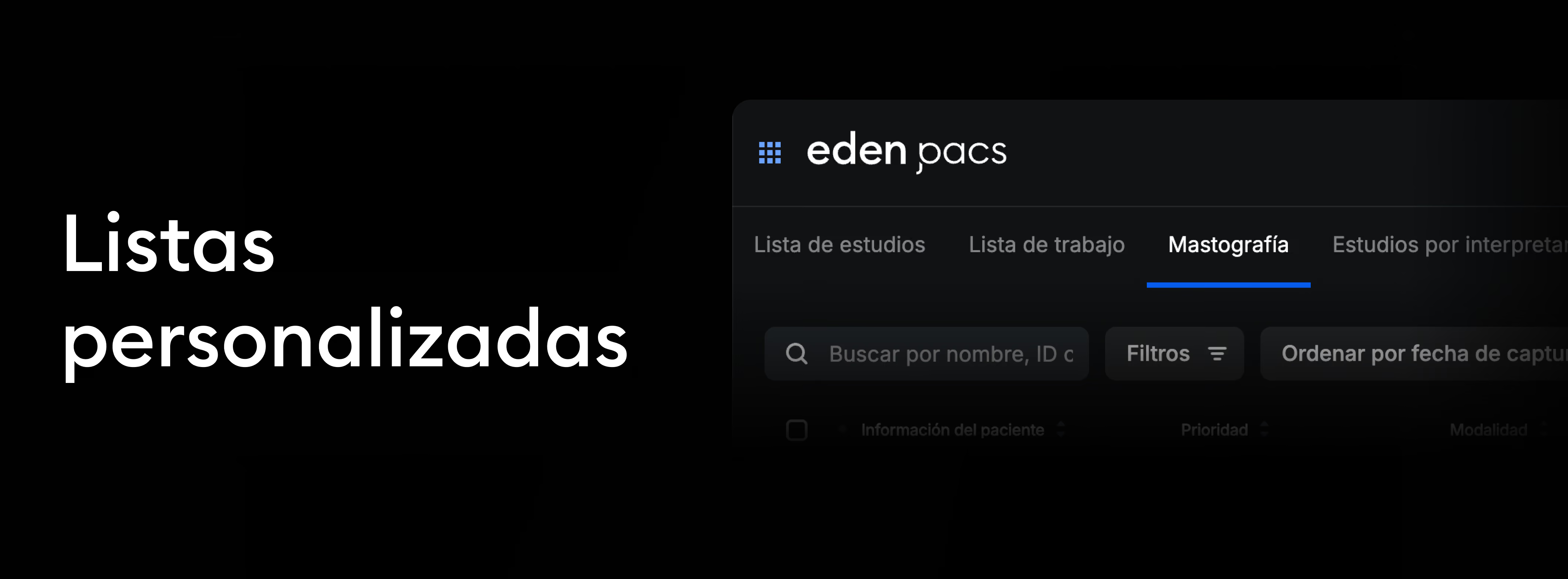
Now, your study lists adapt to you. With the new custom lists feature in Eden PACS, you can filter groups of studies, save your frequent searches, and access them instantly.
It streamlines the radiology workflow and optimizes collaboration between teams, providing real-time visibility of:
- Assigned studies pending sign-off, for individual radiologists.
- Emergency studies, for shift leads in hospital settings.
- Subspecialty studies, for specialist physicians.
- The status of each study, for institutions following operational agreements.
How it affects the workflow
Previously, users accessed a generic list that required applying manual filters each time. Now, they can have smart, persistent lists that load automatically with a single click. This reduces operational time, improves visibility of study status, and allows for more efficient workload distribution among teams.
Each user can create multiple lists and switch between them according to their needs without losing previously configured filters.
There are two types of custom lists in Eden PACS:
- Institutional lists: configured by the organization for all its users, optimizing workflows and ensuring adherence to standardized protocols. These lists can only be edited or deleted with the support of the Eden technical team.*
- Personal lists: created by the user according to their preferences and can be viewed, modified, or deleted at any time. These lists will only appear for the user who created them, and will not be visible to other users in the organization.
*To request the creation of an institutional list, contact our experts at soporte@edenmed.com
How to create your own custom list
- Navigate to your study list and click the "Filters" button. In the filtering modal, choose your search criteria.
- At the bottom left of the modal, click "Save as custom list".
- Give your list a name and save it. Now, you'll be able to access it with a single click every time you log into your Eden PACS account.
If you want to edit your custom list, simply click "Filters".
- To adjust the list, select the filters you want to display and click "Save changes to list".
- To delete the list, click the "Delete" button.
It facilitates the traceability, prioritization, and coordination of key studies, optimizing radiology operations in highly complex environments. Start creating custom lists today in Eden PACS.